→ Click on any of the platforms below to learn more about each one.
CQG Platforms
- Tradovate (free license available)
- NinjaTrader (free license available)
- TradingView & Jigsaw (You will need your own license for each)
Rithmic Platforms
Please note that we do not support NinjaTrader Desktop with Rithmic accounts. Users who wish to use NinjaTrader Desktop must have a Tradovate/CQG account.
- R|Trader Pro (free license available)
- ATAS (free license available)
- Quantower - Rithmic
- Motivewave
- BookMap
- Jigsaw - Rithmic
- Sierra Chart
- EdgeProX
- Finamark
- Volfix
- WealthCharts
- Multicharts
- Overcharts
Tradovate
Tradovate has proven itself as a fast, reliable, and stable platform. It has all the tools you need to get started and succeed, and it works across MAC OS, Windows, IOS, and Android.
You can also connect your own NinjaTrader, TradingView, and Jigsaw licenses to the Tradovate evaluation.
The platforms run using the CQG data feed.
Click here to get started with Tradovate
NinjaTrader
- You can use a free version of NT8 that will be provided for you by NinjaTrader.
- Or you can use your own Multi-broker license or Single-broker license.
- If you have your own Single broker license it needs to be enabled with NinjaTrader as your broker. If it is enabled with another broker, contact them directly to make this switch or upgrade to a Multibroker license.
Please note that using your own license will not reduce the commission costs. Click here to see commissions.
Our version rides on the more stable CQG data feed and is free for all TradeDay members.
It is also fully integrated with Tradovate - what you do on Ninja will appear on Tradovate, and what you do on Tradovate will appear on Ninja.
This means you can now trade from home on Ninja, and check and make trades on the Tradovate mobile application when you are away from your desk!
Please note that NinjaTrader's own mobile application does not work with the evaluation account.
NinjaTrader users can use their own license, but please note that using your license does not reduce the TradeDay commission costs. Click here to see commissions.
Click here to get started with NinjaTrader
TradingView and Jigsaw
- TradingView is free to connect, but you will need your own TradingView license
- Jigsaw is free to connect but you will need your own Jigsaw LIVE license
TradingView and Jigsaw are two very popular trading tools for day traders.
TradingView and Jigsaw are available on the evaluation or funded account. Our trading platform, Tradovate, has full integration with these two tools.
Full instructions on how to integrate TradingView can be found here.
Full instructions on how to integrate Jigsaw can be found here.
Please note that on the funded account, if you would like to have Jigsaw and Tradovate opened at the same time, you will need 2 separate data feeds to run this setup.
Are you have issues with the Jigsaw connection?
Please make sure you have a LIVE Jigsaw license.
If you are experiencing issues with Jigsaw, and you know that your TradeDay Tradovate evaluation account is set up correctly, then you will need to contact Jigsaw support directly. But before you do, here are a couple of things to try and check first:
- Log out of everywhere (TradeDay, Tradovate, and Jigsaw), and then log back in again.
- Ensure your Jigsaw license is up to date, and if you have renewed it recently, please ensure the correct license key has been entered into the platform.
- A few users reported changing their password at TradeDay fixed the issue. If you change your TradeDay password, it automatically changes your Tradovate password. Log out of members.tradeday.com, and at login hit the 'forgot password' link. Please ensure you follow our password requirements carefully.
- A few users have been able to connect by first setting up NinjaTrader, and then connecting to Jigsaw using the Jigsaw platform bridge with NinjaTrader.
R|Trader Pro
All traders wanting to use RTrader Pro require special setup for RTrader Pro
Download the latest version of RTrader Pro from https://www.rithmic.com/rtraderpro
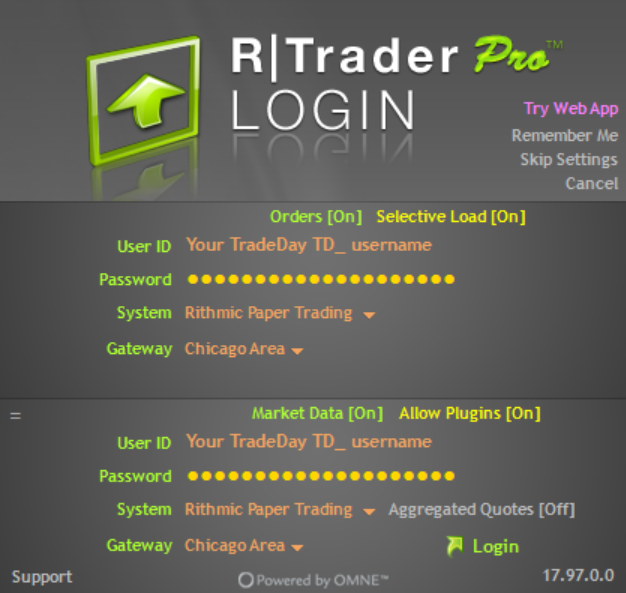
Use these settings:
Orders: On
Market Data: On
Allow Plugins: On
Aggregated Quotes: Off, unless you need it on. See https://www.rithmic.com/post/rithmic-advisory-on-market-movements for more information
User Id: Your TradeDay username. Include the TD_ prefix
Password: Your TradeDay password
System: Rithmic Paper Trading
Gateway: Chicago Area
After you sign in you’ll need to agree to the two CME agreements.
R|Trader Pro must be open and connected before you open any other Rithmic platforms that you wish to connect.
ATAS
If you wish to also use R|Trader Pro, please follow R|Trader Pro connection steps first.
If you want to use your personal ATAS license, click here for instructions on how to connect to your TradeDay evaluation.
Follow these instructions to claim your free ATAS license and connect your TradeDay evaluation
Before launching the platform and connecting the account, you need to register here:
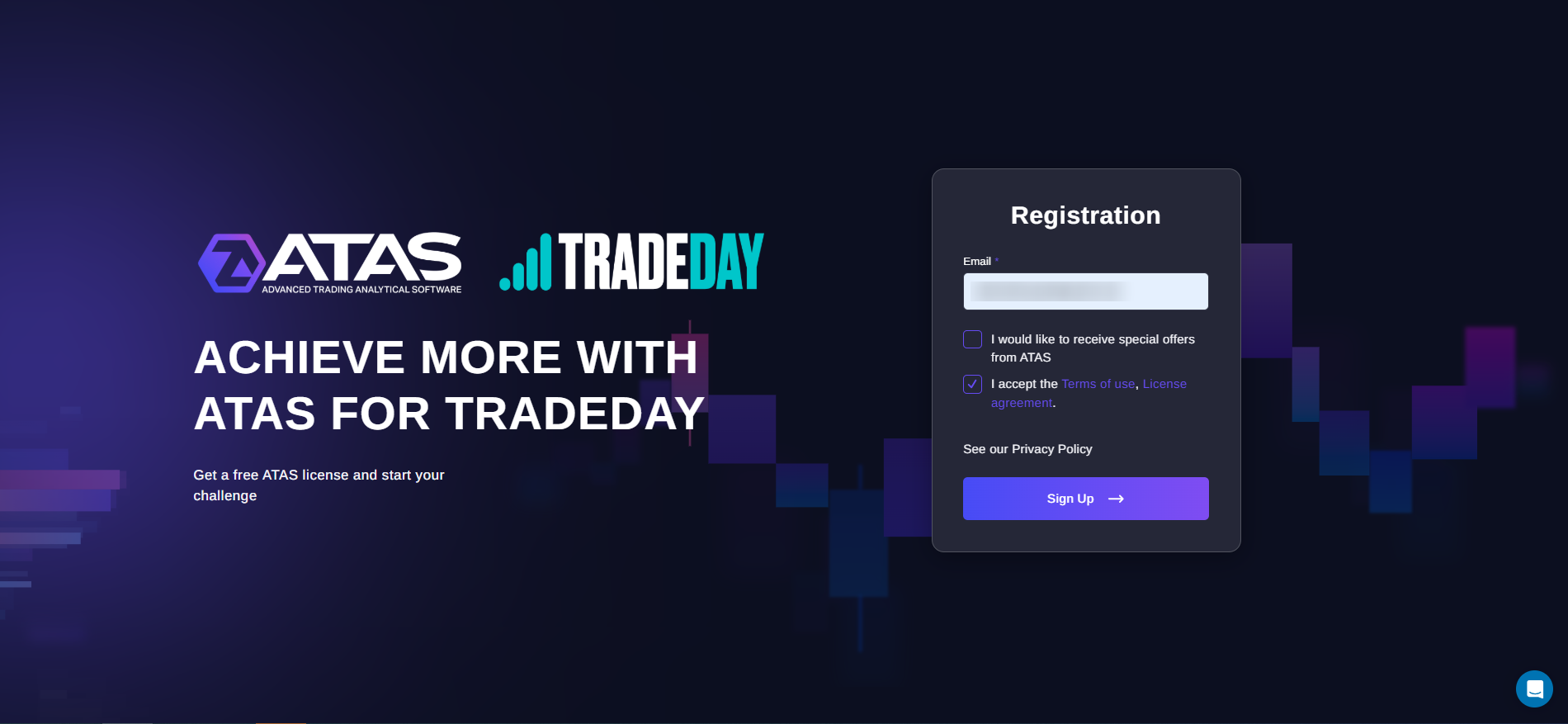
If you already have an ATAS account, use the same login credentials. If you don’t have an account and are signing up with a new email address, use the credentials you receive via email.
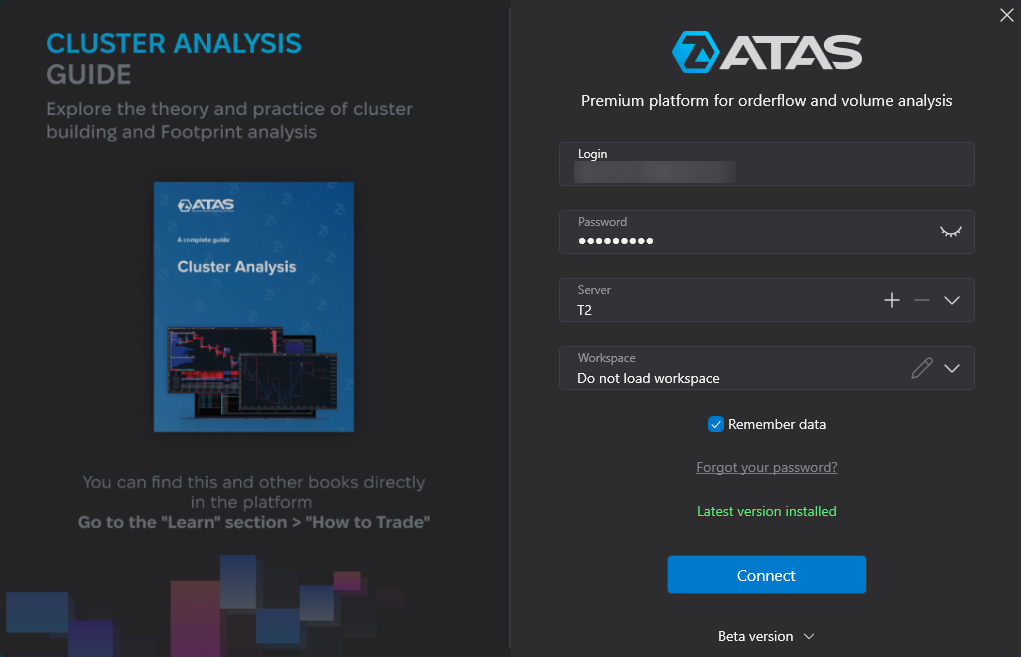
In the ATAS login menu, enter your username and password.
To connect the account, click Connections in the main platform window, then click Add. In the next window, select TradeDay Rithmic.
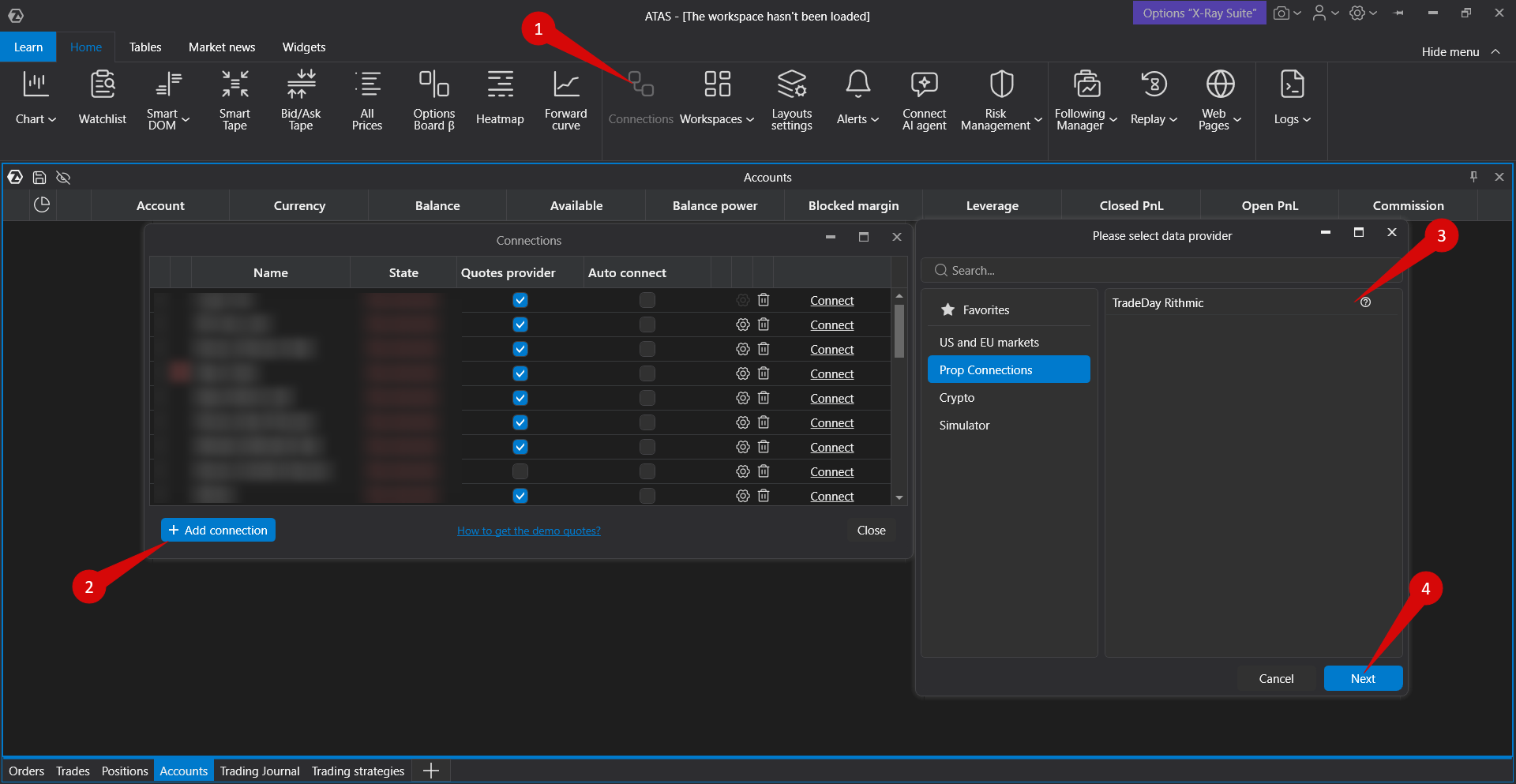
Enter the login and password for your TradeDay account.
Use the login and password provided by TradeDay. Your atas.net credentials will not work here.
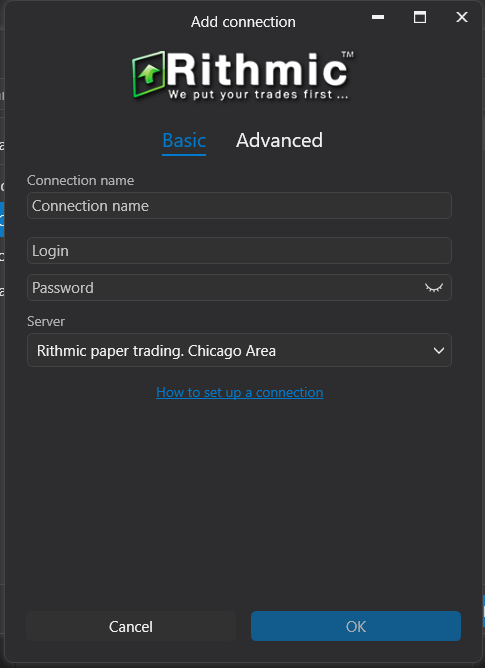
When connecting, it is important to select the Rithmic Paper Trading server.
Click Finish.
After configuring the connection, it will appear as a separate line in the list of connections.
You can read more about the settings of this window here: Connection Settings Window.
BookMap
You will need your own paid Bookmap license in order to trade using Bookmap.
The Bookmap license must have support for futures trading.
Bookmap requires level 2 market order data to function.
If you wish to use R|Trader Pro, please follow R|Trader Pro connection steps first
Select “Trading mode” On the bookmap run options popup at startup
On the main toolbar, press Connections -> Configure
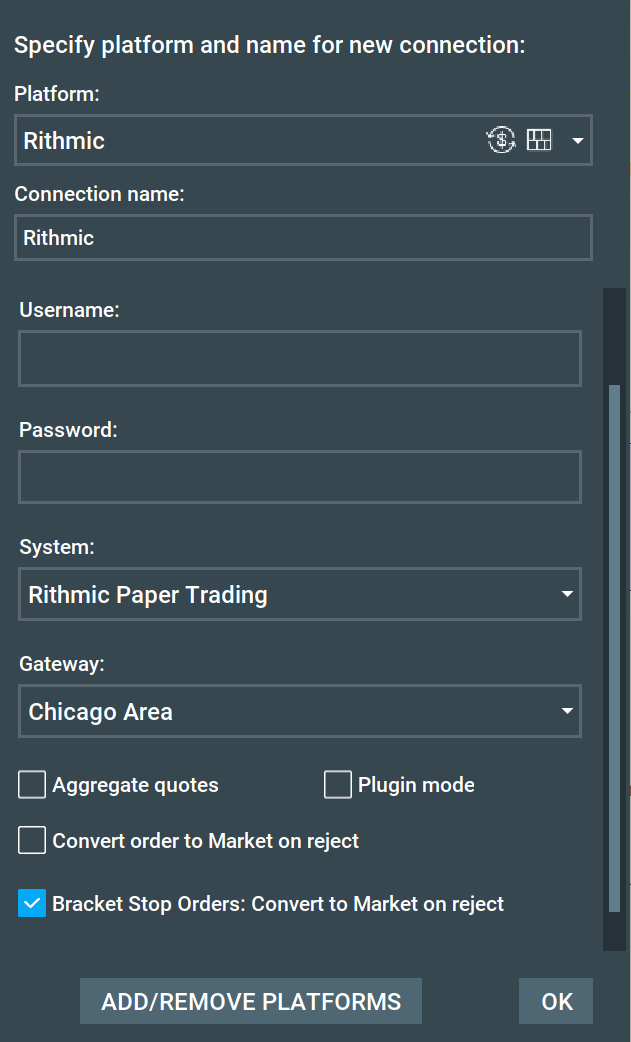
Press “ADD CONNECTION and select Rithmic as the platform
Use these settings:
Connection Name: The name of the connection. You can set this to any name you want. TradeDay is a good choice.
Username: Your TradeDay username. Include the TD_ prefix
Password: Your TradeDay password
System: Rithmic Paper Trading
Gateway: Chicago Area
Aggregated Quotes: Off (unless you need it) more information here.
Plugin Mode: Off if you want to connect with Rithmic directly. On if you want to connect with RTraderPro
EdgeProX
You will need your own paid EdgeProX license in order to trade using EdgeProX.
On the starting window, press Options -> Workspaces
Alternatively, from the main menu once logged in, press Configure -> Workspaces
Click “New Workspace” or select your workspace and press “Modify”
Press “Add Connection” on the Edit Workspace window
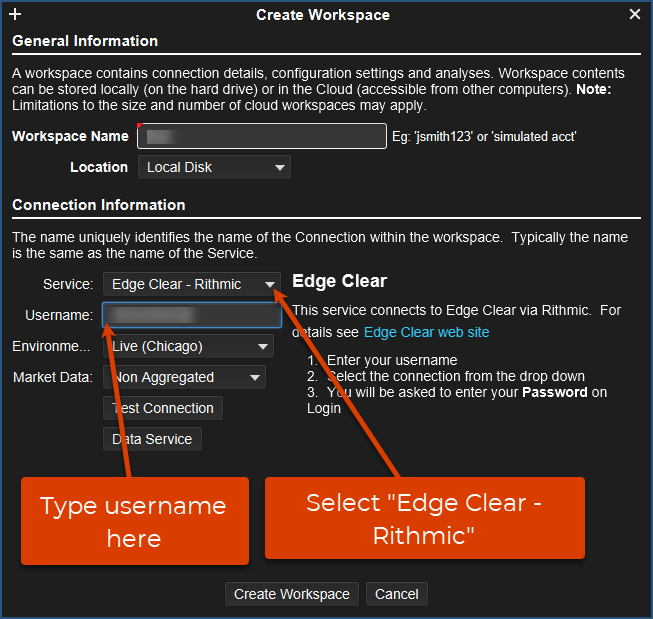
Use these settings:
Workspace Name: The name of the workspace. You can set this to any name you want. TradeDay is a good choice.
Service: Edge Clear - Rithmic
Username: Your TradeDay username. Include the TD_ prefix
Password: Your TradeDay password
Environment: Chicago Area
Market Data:
Non Aggregated (Rithmic only)
Aggregated: (Rithmic only with aggregated data. Choose non-aggregated unless you need aggregated data. Check here for more information.
R|Trader Gateway: Use this option to use R|Trader Pro
Create Workspace
Finamark
You will need your own paid Finamark license in order to trade using Finamark.
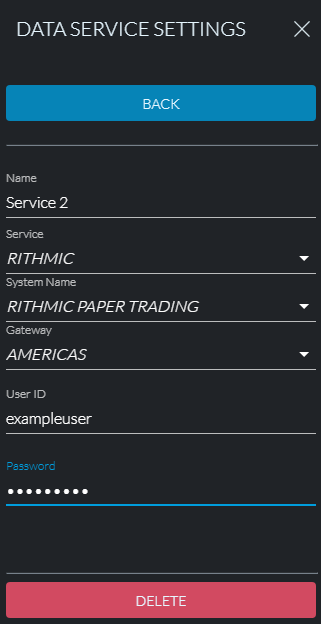
Navigate to Data Service Settings
Tap “Add New” if the button shows
Use these settings:
Name: The name of the workspace. You can set this to any name you want. TradeDay is a good choice.
Service: RITHMIC
System Name - RITHMIC PAPER TRADING
Gateway: AMERICAS
User ID: Your TradeDay username. Include the TD_ prefix
Password: Your TradeDay password
Jigsaw - Rithmic
You will need your own paid Jigsaw license in order to trade using Jigsaw.
Jigsaw requires level 2 market order data to function.
Click the Connection Manager icon
 to open Connection Manager
Press “+ Add Connection” and select Rithmic
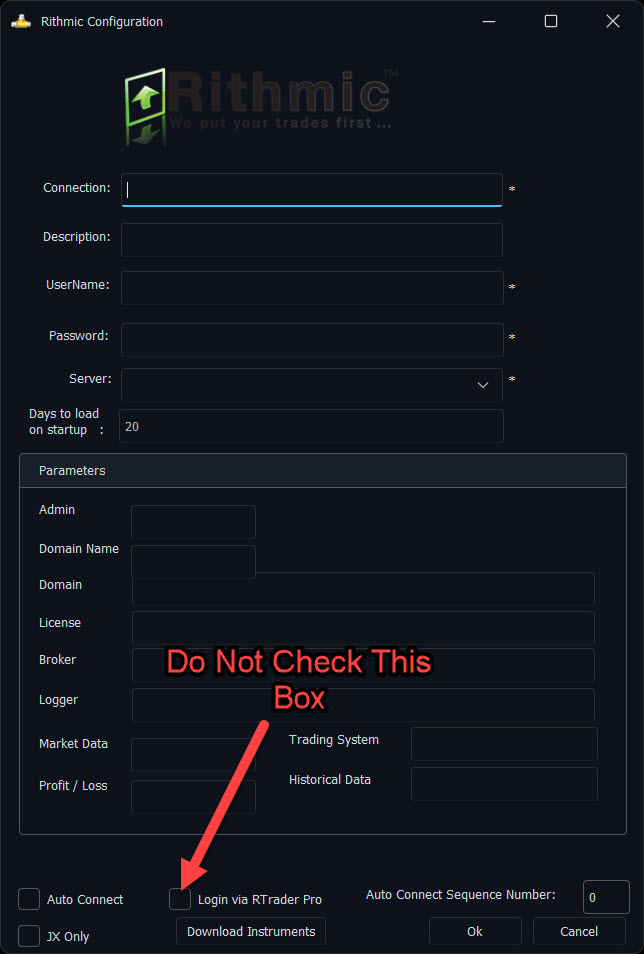
Use these settings:
Connection: The name of the connection. You can set this to any name you want. TradeDay is a good choice.
Description: An additional comment for the connection. Optional.
User Name: Your TradeDay username. Include the TD_ prefix
Password: Your TradeDay password
Server: Rithmic Paper Trading
Days to load on startup: How much historical data you wish to load
Parameters: Ignore this entire section
Login via RTrader Pro: Tick if you wish to connect via RTrader Pro. Leave unticked if you want to connect to Rithmic directly.
Auto Connect: Tick if you want Jigsaw to automatically connect to this connection on startup
Press Ok
Motivewave
You will need your own paid Motivewave license in order to trade using Motivewave.
On the starting window, press Options -> Workspaces
Alternatively, from the main menu once logged in press Configure -> Workspaces
Click “New Workspace” or select your workspace and press “Modify”
Press “Add Connection” on the Edit Workspace window
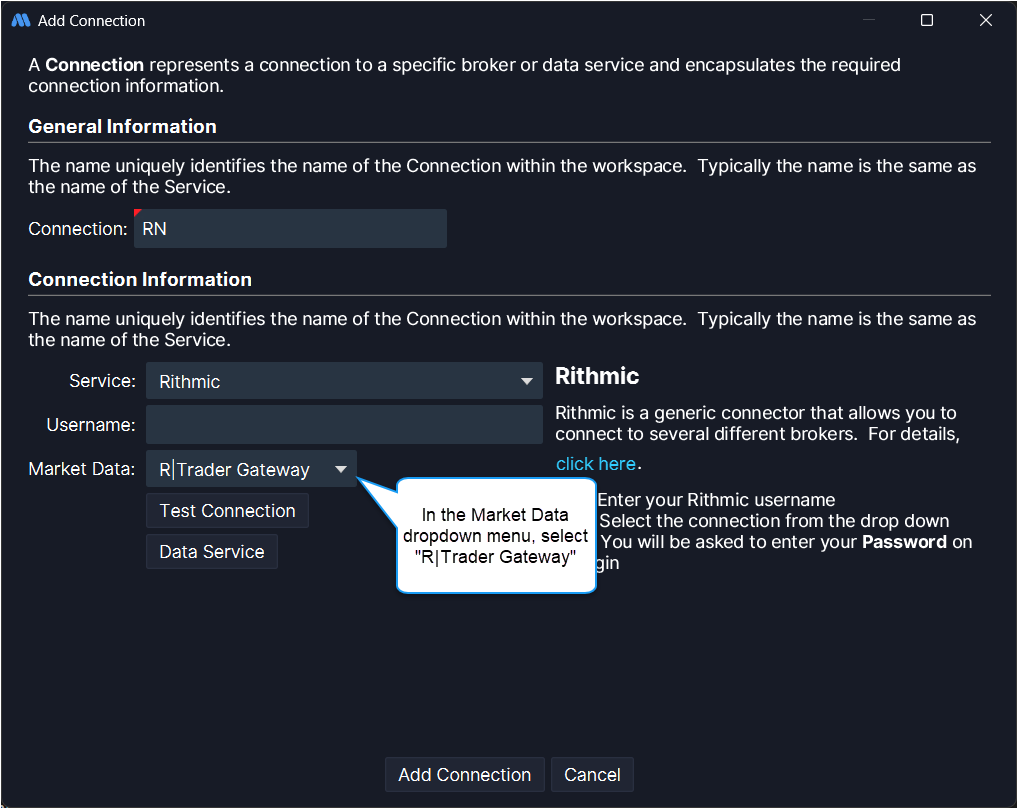
Use these settings:
Workspace Name: The name of the workspace. You can set this to any name you want. TradeDay is a good choice.
Service: Rithmic
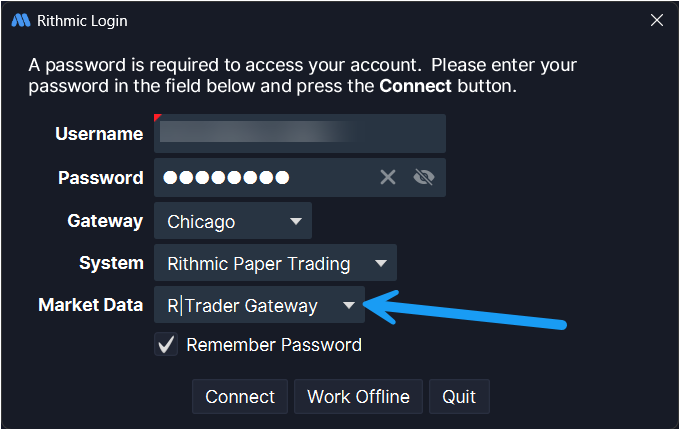
Username: Your TradeDay username. Include the TD_ prefix
Password: Your TradeDay password
Gateway: Chicago
Service: Rithmic Paper Trading
Market Data:
Non-aggregated (Rithmic only)
Aggregated: (Rithmic only with aggregated data. Choose non-aggregated unless you need aggregated data. Check here for more information)
R|Trader Gateway: Use this option to use R|Trader Pro
Connect
Press “Update Workspace” to save your changes
Quantower - Rithmic
You will need your own Quantower license in order to trade using Quantower.
Go to the connections menu (Right side of the top menu)
Press the plus button next to “Rithmic” to define a new connection
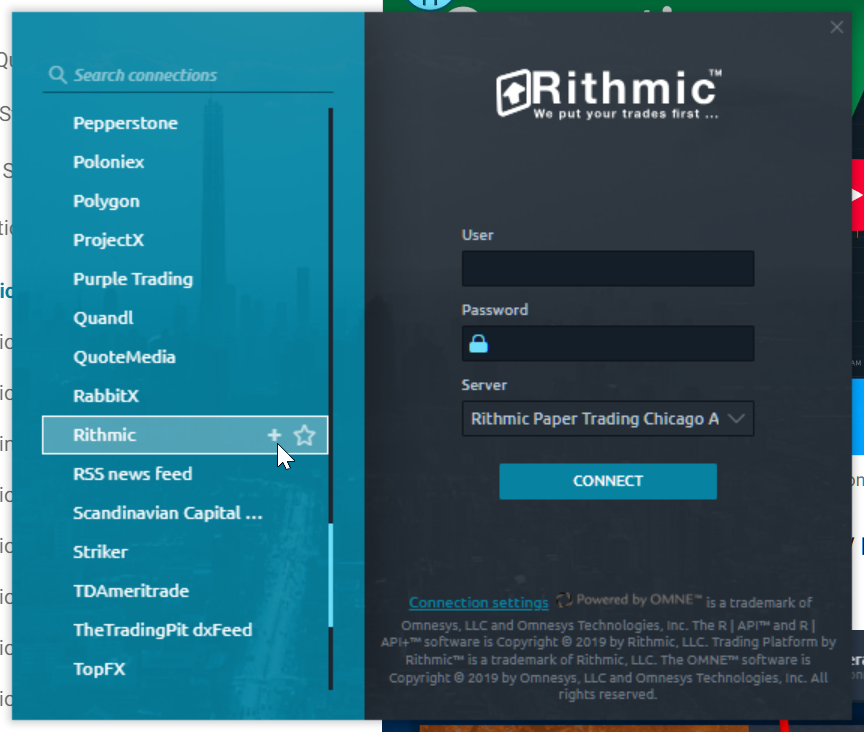
- Use these settings:
Username: Your TradeDay username. Include the TD_ prefix
Password: Your TradeDay password
Server: Rithmic Paper Trading Chicago Area
- Right-click on a Rithmic connection and rename it. You can set this to any name you want. TradeDay is a good choice.
- You can also press the star next to the Rithmic connection to favourite it
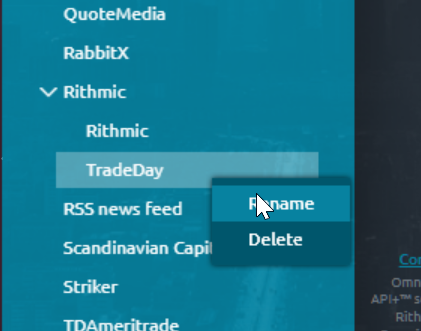
- Press “Connection Settings” at the bottom. Use these settings:
Check “Enable Market Data”
Check “Enable historical data”
Check “Load predefined list of symbols”
If you wish to use R|Trader Pro, check “Use RTrader”
Aggregated market data: Unchecked (unless you need it. Check here for more information.)
- Close the Rithmic settings window
- Press Connect
Sierra Chart
You will need your own Sierra Chart license in order to trade using Sierra Chart.
Please make sure to be on the latest version of Sierra Chart
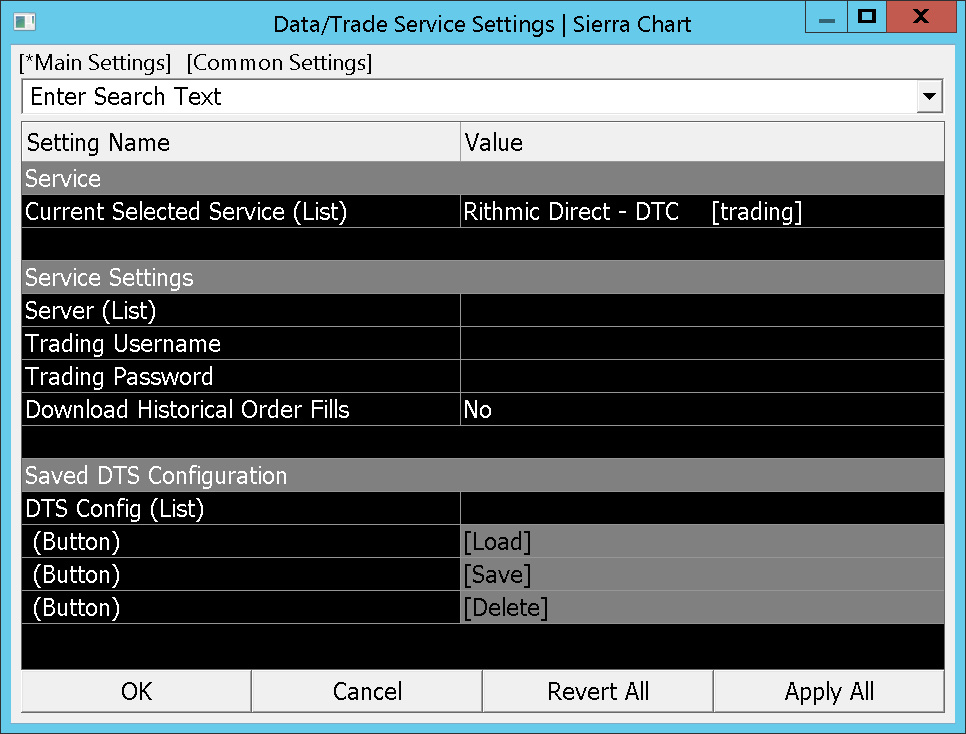
On the main toolbar, go to Global Settings -> Data/Trade Service Settings
On the main settings tab, click Current Selected Service (List) and then select Rithmic Direct - DTC [Trading]
Press Ok to close the Data/Trade Service Settings
Wait 15 seconds. This is required for Sierra to get information about Rithmic
On the main toolbar, go to Global Settings -> Data/Trade Service Settings
Use these settings:
Server (List): Rithmic Paper Trading Chicago Area
Trading Username: Your TradeDay username. Include the TD_ prefix
Trading Password: Your TradeDay password
Market Data Username: Your TradeDay username. Include the TD_ prefix
Market Data Password: Your TradeDay password
Historical Data Username: Your TradeDay username. Include the TD_ prefix
Historical Data Password: Your TradeDay password
Press Ok
On the main toolbar, go to File -> Connect to Data Feed
Volfix
You will need your own Volfix license in order to trade using Volfix.
Volfix requires R|Trader to sign CME licence
On the market watch window, press setup -> Connections on top right of chart window
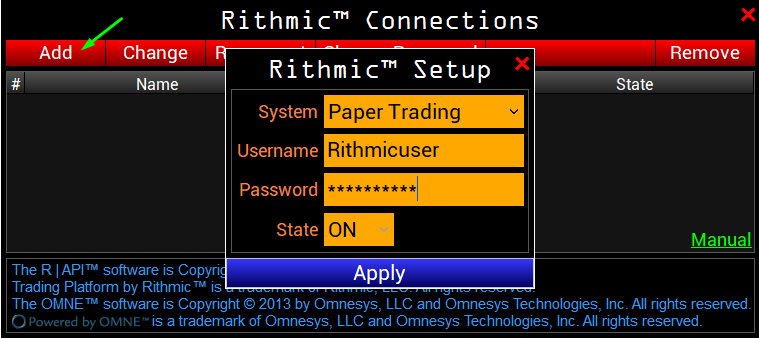
Press New -> Rithmic
Use these settings:
System: Paper Trading
Username: Your TradeDay username. Include the TD_ prefix
Password: Your TradeDay password
WealthCharts
You will need your own WealthCharts license in order to trade using WealthCharts.
If you wish to use R|Trader Pro, please follow R|Trader Pro connection steps below:
In the top right corner, press Settings -> Additional Connection -> Rithmic
Use these settings:
Select Gateway: Chicago
System: “Rithmic Paper Trader”
Username: Your TradeDay username. Include the TD_ prefix
Password: Your TradeDay password
Multicharts
You will need your own Multicharts license in order to trade using Multicharts.
If you wish to use R|Trader Pro, please follow R|Trader Pro connection steps below:
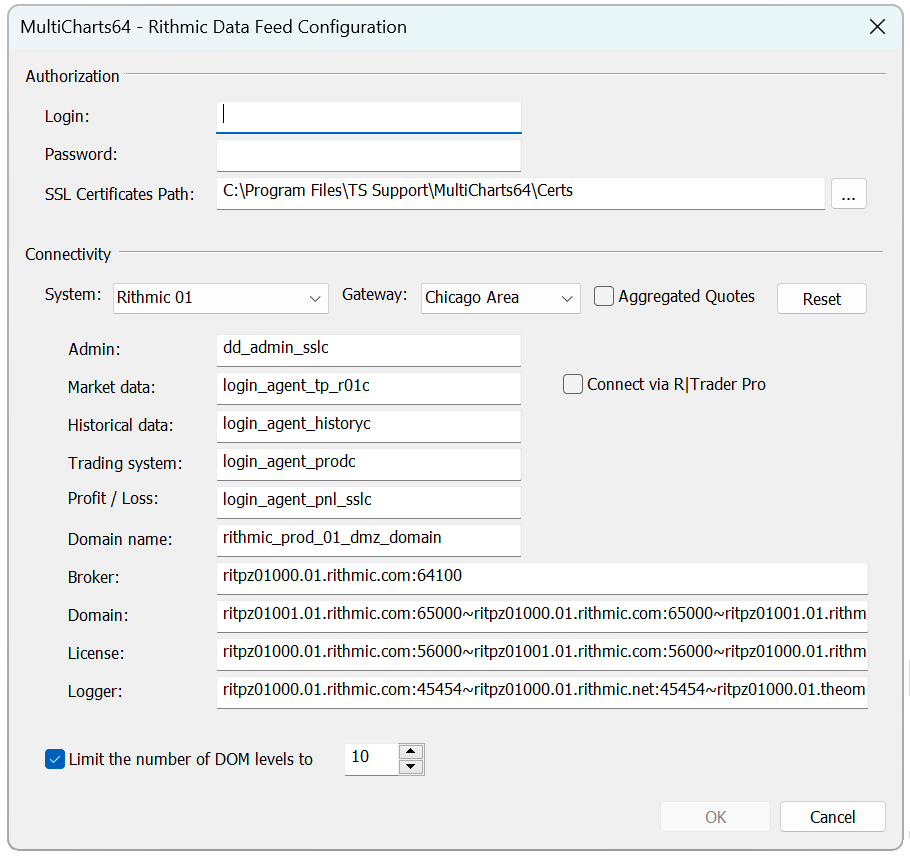
In the QuoteManager main menu, press Tools -> Data Sources
Select Rithmic
Use these settings:
Username: Your TradeDay username. Include the TD_ prefix
Password: Your TradeDay password
System: “Rithmic Paper Trader”
Gateway: Chicago Area
Aggregated Quotes: Off (unless you need it. Check here for more information.)
Connect via R|Trader Pro: Tick if you wish to use R|Trader Pro
Overcharts
You will need your own Overcharts license in order to trade using Overcharts.
Main menu -> Connections tab -> Rithmic
Use these settings:
Username: Your TradeDay username. Include the TD_ prefix
Password: Your TradeDay password
Connection Point: Rithmic Paper Trader Chicago
Historical data & RT from ‘R|Trader Pro’: Tick if you wish to use R|Trader Pro
For further support, reach out to our support team at support@tradeday.com
Was this article helpful?
That’s Great!
Thank you for your feedback
Sorry! We couldn't be helpful
Thank you for your feedback
Feedback sent
We appreciate your effort and will try to fix the article