Windows user: How to Set Up Market Data in R Trader Pro
How to setup R Trader Pro
Download the latest version of RTrader Pro from here.
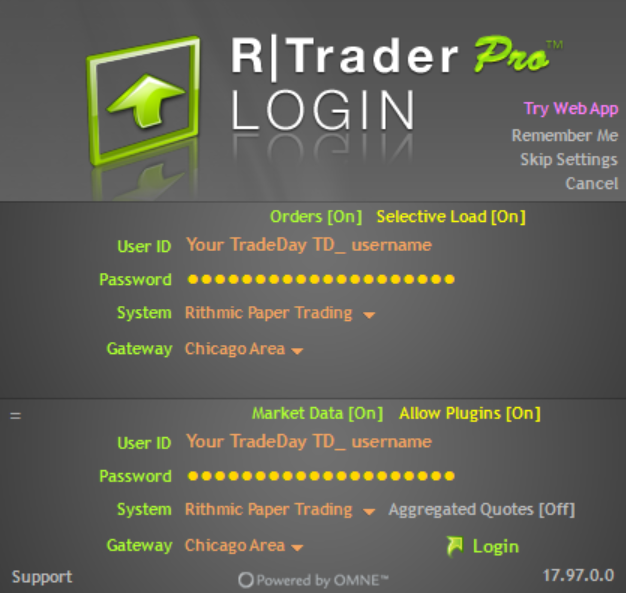
Use these settings:
Orders: On
Market Data: On
Allow Plugins: On
Aggregated Quotes: Off, unless you need it on. See here for more information
User Id: Your TradeDay username. Include the TD_ prefix
Password: Your TradeDay password
System: Rithmic Paper Trading
Gateway: Chicago Area
After you sign in you’ll need to agree to the two CME agreements.
If you're unable to see live prices in R Trader Pro, you may need to enable your market data.
Step 1: Log in to R Trader Pro
Sign in using your Rithmic credentials.
Step 2: Open the Market Data Window
From the top menu, click Settings > Market Data.
Step 3: Enable Your Market Data
Check the box next to the exchange(s) you want to receive market data for.
Example:
- CME – E-mini S&P 500 (ES), Micro E-mini S&P 500 (MES), Nasdaq (NQ/MNQ), Dow (YM/MYM), Russell (RTY/M2K)
- CBOT – Treasury futures and grain products
- NYMEX – Crude Oil (CL/MCL), Natural Gas (NG)
- COMEX – Gold (GC/MGC), Silver (SI)
Tip: If you only trade CME products such as ES, NQ, MES, or MNQ, you only need to enable CME.
Step 4: Save Your Changes
Click Apply or OK to save your settings.
Step 5: Restart R Trader Pro
Close and reopen R Trader Pro to ensure the changes take effect.
Mac & Linux Users: How to Set Up Market Data Online
R|Trader Pro Desktop is currently available for Windows only. If you are using macOS or Linux, you can access R|Trader Pro through the web version using a supported browser.
Step 1: Open R|Trader Pro Web
Open the R|Trader Pro Web platform using a supported web browser.
Step 2: Enter Your Rithmic Credentials
Enter the Rithmic username and password provided with your trading account.
Step 3: Select Your System
Select the System Name associated with your trading account.
Step 4: Select Your Gateway
Choose the appropriate Gateway for your account. The gateway is Chicago Area
Step 5: Connect Your Account
Click Login or Connect and wait for the platform to establish a connection.
Step 6: Verify Your Market Data
Once connected, open a market data window or chart and search for the futures contract you want to view.
Still Not Seeing Live Data?
If prices are still not updating:
- Verify that the correct exchange is enabled.
- Make sure you are logged into the correct Rithmic account.
- Restart R Trader Pro after making any changes.
- If the issue persists, contact our support team with a screenshot of your Market Data settings for further assistance.
Was this article helpful?
That’s Great!
Thank you for your feedback
Sorry! We couldn't be helpful
Thank you for your feedback
Feedback sent
We appreciate your effort and will try to fix the article